Transcript reuse · 6 min read
SRT to Text: Turn Subtitles into a Readable Transcript
Convert SRT subtitles to readable text without losing speaker changes, meaningful sounds, or context. Follow a worked example and a final review checklist.
By Zhang at Wordtake. Zhang works on Wordtake and writes about transcript review and content reuse. The examples here are invented to demonstrate editing decisions.
Convert the structure, then review the meaning
To convert SRT to text, export a plain-text transcript from a caption editor, or remove each cue’s sequence number and timing line while keeping its spoken text. Then join sentence fragments, mark speaker changes, and compare the result with the recording. Renaming the file to TXT does not remove its subtitle structure.
This workflow is for an existing subtitle file that you have permission to edit. You need the matching recording and a text or caption editor. It does not require retranscribing the media. Work on a copy so the original timings remain available when a quotation or unclear phrase needs checking.
- Keep the original SRT as the timed reference.
- Remove cue metadata without deleting numbers that are spoken.
- Build paragraphs around sentences and speaker turns.
- Review the recording before calling the output final.
1. Choose a reading copy or a reference copy
A reading copy favors continuous paragraphs. A reference copy also keeps occasional timestamps so someone can return to the recording. Decide which you need before stripping every time value. For an interview, a timestamp at the start of an answer may be useful; for a short announcement, repeated timing labels may interrupt reading.
Keep a small source note above your working transcript: recording title, language, version, and whether the captions were reviewed. Verify that the beginning and ending match the video. If the subtitles belong to an earlier edit, rebuilding paragraphs will not restore missing or rearranged speech. Resolve that mismatch first.
2. Remove cue metadata, not spoken numbers
An ordinary SRT cue has a sequence number, a line containing start and end times, and one or more text lines. Use your editor’s transcript or plain-text export if available, then inspect the result. With manual editing, remove the sequence number and time range from each complete cue, preserving the text underneath.
Do not delete every line containing only digits. In a training recording, “2026” or “42” might be spoken content on its own line. Its position within the cue determines whether it is metadata. Likewise, a time mentioned by a speaker belongs in the transcript even though it resembles a timestamp.
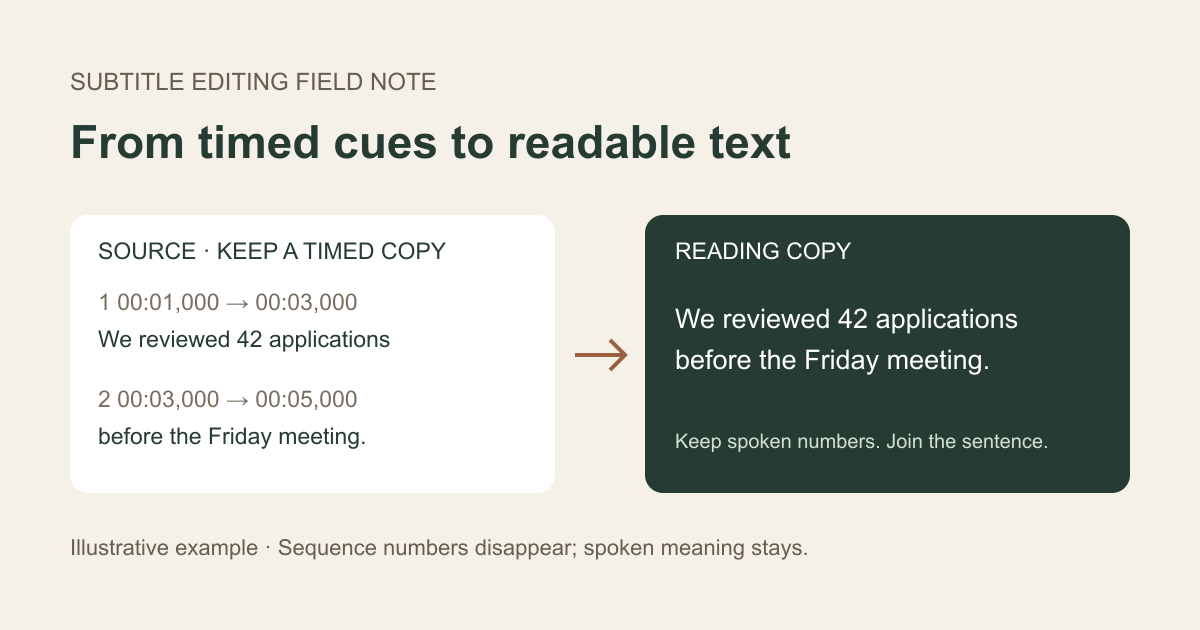
The following invented example shows two adjacent cues. The slash symbols below indicate line breaks; they are explanatory notation, not part of an SRT file.
- Cue 1: 1 / 00:00:01,000 --> 00:00:03,000 / We reviewed 42 applications
- Cue 2: 2 / 00:00:03,000 --> 00:00:05,000 / before the Friday meeting.
- Reading copy: We reviewed 42 applications before the Friday meeting.
3. Rebuild sentences and speaker turns
Caption boundaries follow screen timing and available space. They do not reliably mark sentence endings. Join adjacent fragments when the recording confirms that they form one sentence. Start a new paragraph when the speaker or subject changes, rather than turning the whole file into one long block.
If the next cue says “Maya: Three still need a second review,” keep it as a new speaker turn. Do not attach it to the previous person’s statement. When identity is uncertain, use a consistent neutral label such as “Speaker 2” and flag it for review. Do not infer a person’s name from topic or speaking style.
Repeated words also need context. A rolling caption export can repeat text already visible in an earlier cue, but a speaker may genuinely repeat a phrase for emphasis. Compare the overlapping passage with the recording before removing duplicates. Keep uncertain material marked instead of quietly rewriting it.
4. Preserve sounds and explain essential visuals
A readable transcript may need more than dialogue. W3C WAI distinguishes basic transcripts, which include relevant speech and non-speech audio, from descriptive transcripts, which also explain visual information needed to understand the content. It describes caption files as a useful starting point, with further formatting and visual information added when needed.
In an invented equipment demonstration, “[alarm sounds]” can explain why the presenter stops speaking. Removing it as clutter would lose context. If the presenter says “choose this setting” while pointing at a menu, identify the demonstrated setting after checking the picture. Mark your addition clearly, for example “[Selects Export > Plain text].”
Keep editorial descriptions distinct from spoken words. A file conversion cannot establish that a transcript contains all relevant visual information. Review the actual media and your audience’s needs; do not treat successful export as an accessibility certification.
5. Check whether the source is actually WebVTT
If the file begins with WEBVTT, use a WebVTT-aware export workflow. MDN documents a format with cue identifiers, optional timing settings, and NOTE, STYLE, and REGION blocks. These are not all dialogue. Removing only timestamp lines can leave metadata mixed into your reading copy.
WebVTT text can also carry voice annotations. Preserve the speaker information in a readable label before discarding presentation markup. Inspect a few exported passages with speaker changes and formatted text. A converter suitable for simple SRT files should not be assumed to handle every WebVTT feature.
Open the saved text in a second application and check accented names, punctuation, and non-English characters. Keep a suitable encoding such as UTF-8 and verify the actual characters after export. A file that opens successfully can still contain damaged text.
6. Publish a checked transcript beside its source
Review names, numbers, negations, and speaker attribution against the recording. If you edit filler words or false starts, state that the transcript has been lightly edited for readability. If exact wording is required, retain it and use the original timing reference for verification. Keep a summary separate from the transcript.
For web publishing, provide a clear transcript link beside the media, use headings that describe its sections, and ensure the reading order makes sense. Test on a phone as well as a desktop. Keep the source version with your working files so a later caption update can be carried into the transcript deliberately.
If you are starting with a recording rather than an existing SRT, Wordtake can generate a transcript and export TXT, SRT, or VTT. Review the text once, then choose the format needed for reading or playback. This guide describes an editing workflow; it does not imply that the workspace imports existing subtitle files.
- The first and last spoken passages are present.
- Spoken numbers survived metadata removal.
- Speaker changes and meaningful sounds remain understandable.
- Added visual descriptions are clearly editorial.
- Uncertain words have been checked or visibly flagged.
- The published text matches the intended recording version.